Interface
Windows
Within the editor, you can launch several different “windows”, interfaces dedicated to a particular task. Some of these are opened automatically, such as the error log which appears when assembly fails, while others are user activated, like the text-based monitor, breakpoint viewer, etc.
Navigation to and from these windows as well as cycling between active ones can be performed with the following commands.
COMMAND |
KEY |
DESCRIPTION |
|---|---|---|
|
|
Cycles to the next available window (if already in the editor, enters the active window) |
|
|
If a window is active, returns focus to the editor. The window is left open, its rows still onscreen |
|
|
Closes the active window. Focus moves to the next open window, or back to the editor if it was the last one |
|
|
Toggles the display of windows entirely |




Note that EXIT only gives focus back to the editor; the window remains open above the
status row. To restore the full-screen editor, either use CLOSE or hide the window
area entirely with HIDE.
CLOSE acts on whatever has focus: it closes the active window when a window is focused,
and the current source buffer when the editor is focused (see the EDITOR section).
Some windows are also closed for you: the error log is closed by the next assembly (which clears the old errors), and entering or quitting the debugger closes every open window.
Some windows, in particular the memory viewer/editor and the text-based monitor, are resizable; this is done with the following keys.
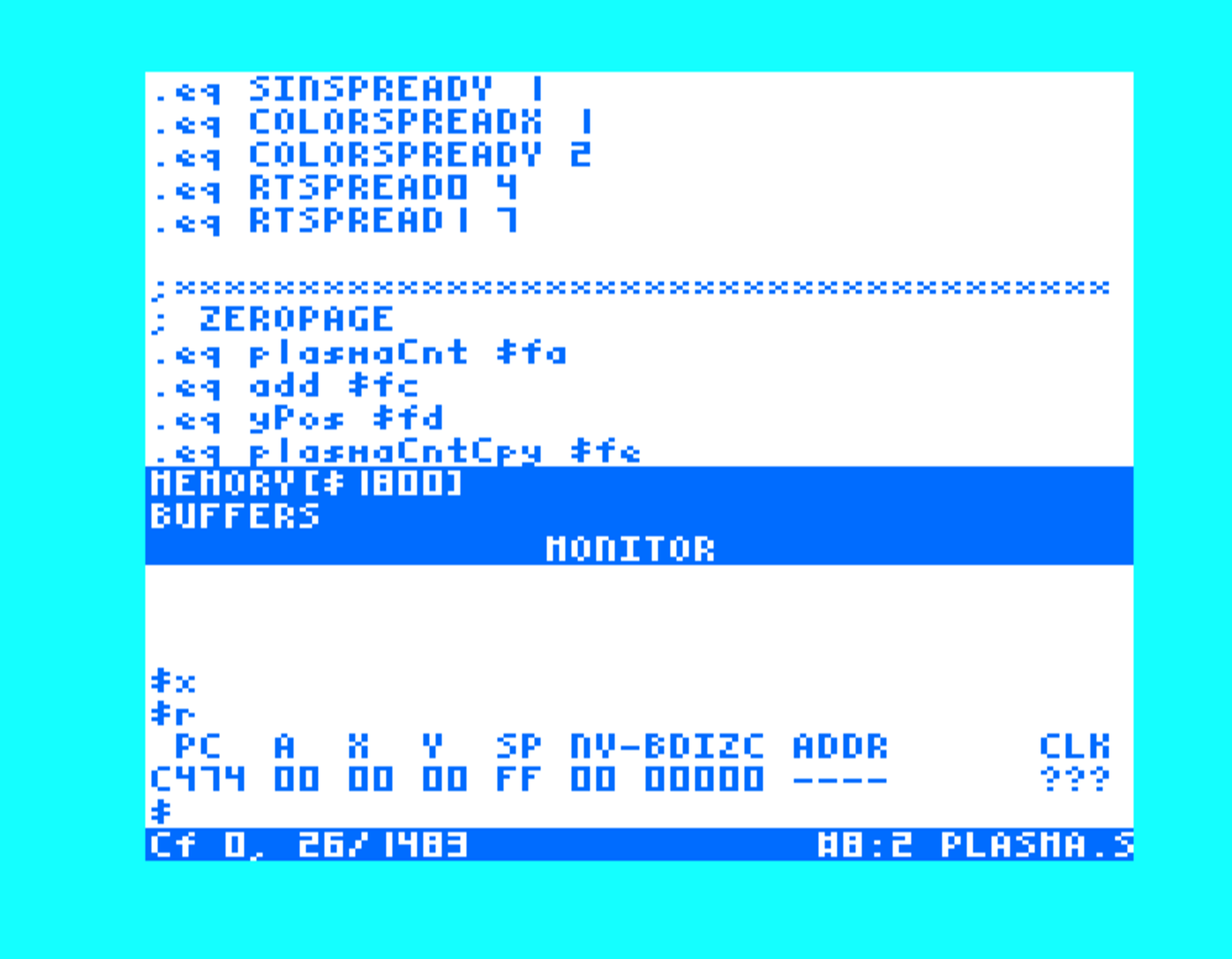
Several windows may remain open at once as shown here with the buffer, monitor, and memory windows
COMMAND |
KEY |
DESCRIPTION |
|---|---|---|
|
|
Enlarges the active window |
|
|
Shrinks the active window |
|
|
Toggles between full screen (if currently not maximized) and its last unmaximized size (if maximized) |



Full-screen viewers
The directory viewer ( ), symbol viewer (
 +
+  ) and macro viewer
( +
) and macro viewer
( +  ) are not windows. Each takes over the whole screen while open,
and they cannot be resized, hidden, or cycled through with the window keys above.
) are not windows. Each takes over the whole screen while open,
and they cannot be resized, hidden, or cycled through with the window keys above.
They can still be closed with CLOSE. EXIT also quits these viewers in most cases.
The one exception is the macro viewer. In it, EXIT first returns from a macro definition to
the macro list, while CLOSE closes the viewer outright from either mode.